Open an order from your dashboard to see everything about it in sections: Request, Progress, Documents, Buyer and Messages, and Your fields when your form has questions only you see.
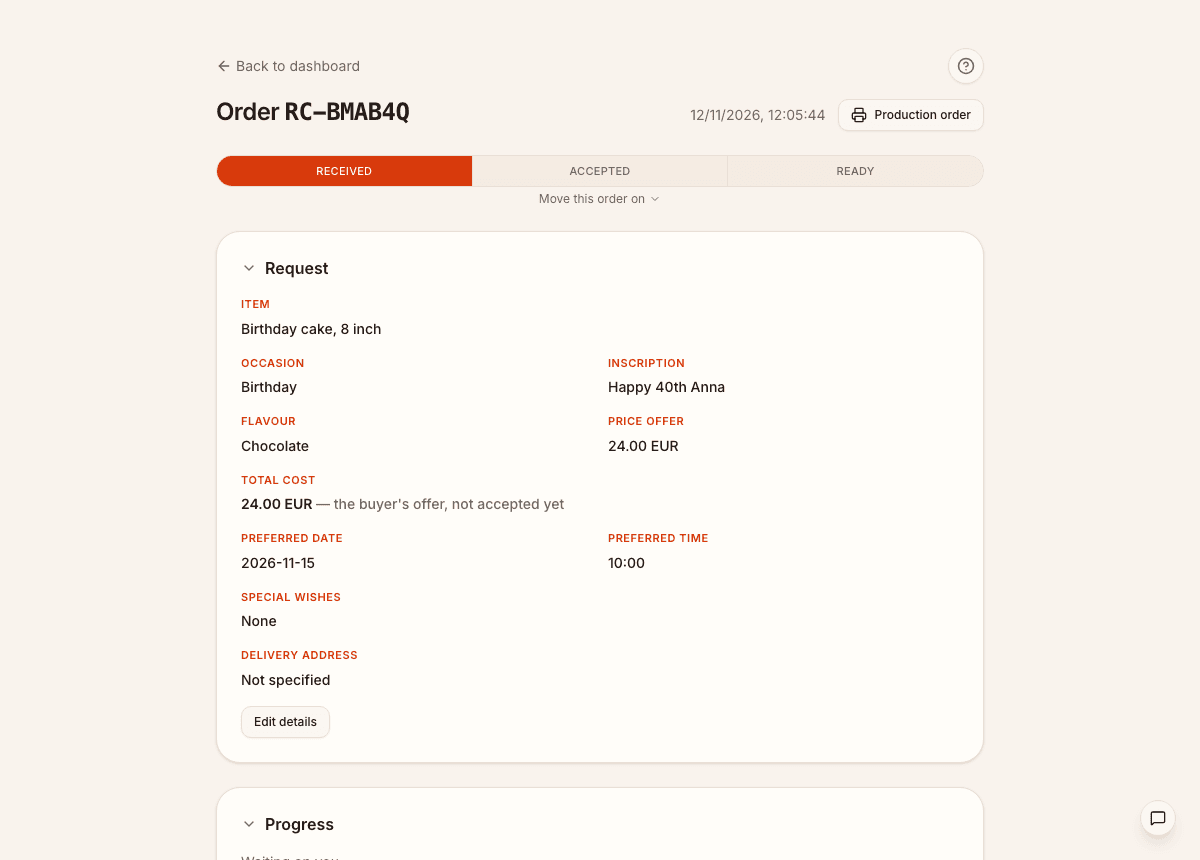
The steps
The bar at the top shows where the order is: Received, Accepted, Ready. Under Progress:
- Accept: you'll make it, as asked.
- Accept with changes: you'll make it with a different price, number of items or date. Your customer confirms the new terms on their order page. See Prices, quantities and dates.
- Decline: you can't take it. Your customer is told by email.
- Mark ready: it's done. Your customer is told by email, with your message.
- Reopen: undo a decline or a ready.
Each move can carry a message to your customer, sent with the email, such as "Ready from 2pm, ring the side door". The Private note beside it is only for you.
What else is on the order
- Request: everything the customer asked for, your own fields, and Edit details if something changes. See Changing an order.
- Your fields: answers only you see, such as which tray or which supplier.
- Progress also shows whether the order is paid, with Mark as paid. See Marking an order paid.
- Documents: the confirmation, invoice and receipt. See Confirmations, invoices and receipts.
- Buyer: their contact details and their tracking link, ready to paste into a chat.
- Messages: your conversation, with pictures. See Messaging your customer.
On an accepted order, Print production order makes a sheet for your workshop or kitchen: what to make, the details and the date, with no prices.